

How Will Reviews Work
Your workspace for reviewing a client’s will: what each stage means, how to read and edit the draft, and how your work reaches the client
What a Will Review Is
A will review is a client asking you to look over the will they have drafted on the platform. You read their draft, raise anything that needs attention, and, where you have been engaged to do so, edit the draft text directly. The client sees your work when you send it to them, not while you are still working on it.
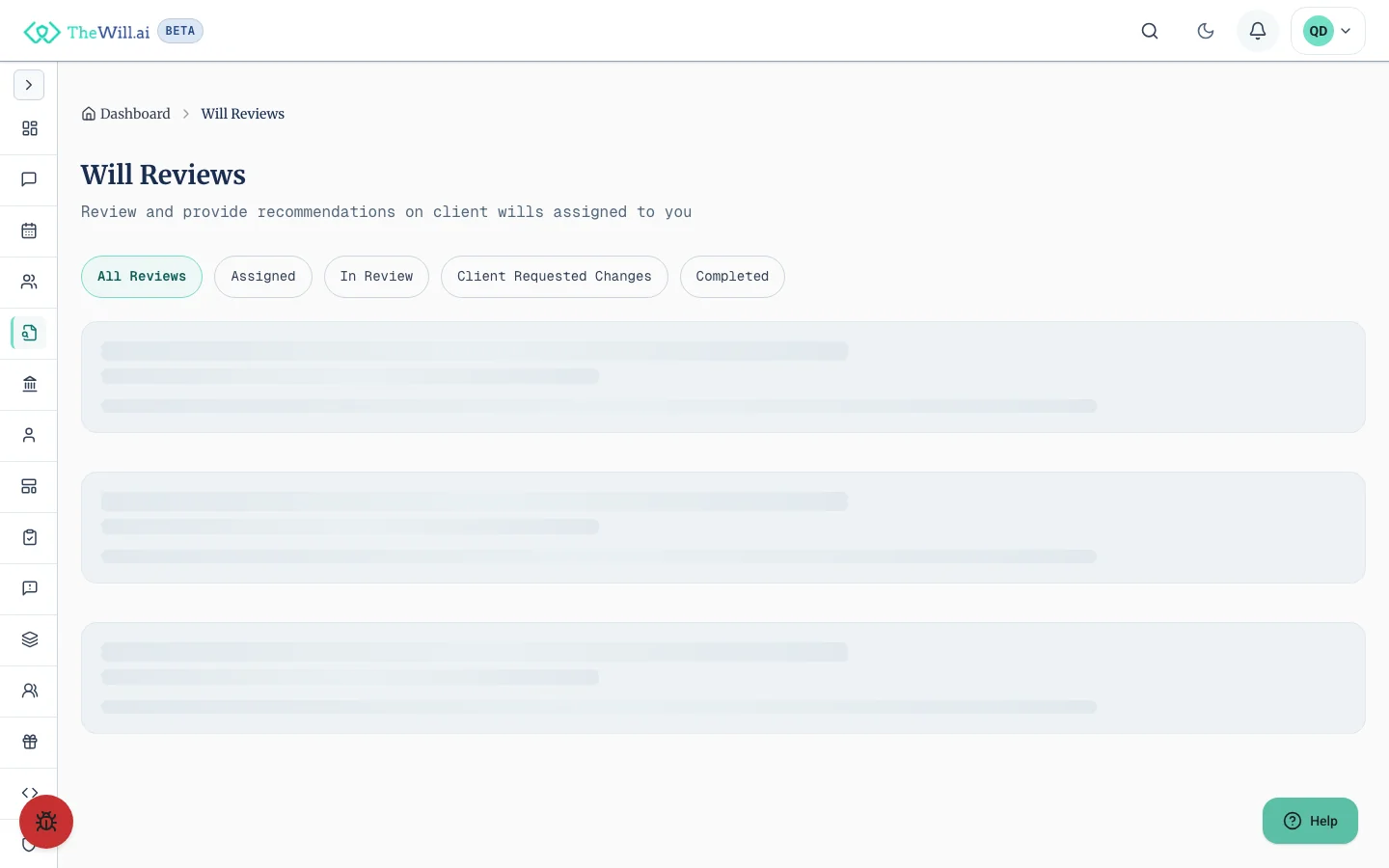
The stages a review moves through
- RequestedThe client has asked for a review. No professional is attached yet.
- AssignedYou have been attached to the review and can open the workspace.
- In reviewYou are actively working, and the review stays here for the whole of it. Reading the draft, adding recommendations and editing clauses all happen at this stage and none of them move it on. Nothing you write reaches the client until you submit.
- Awaiting client confirmationYou have submitted for client confirmation. A new version of the will has been snapshotted and sent, and the client is deciding whether to accept it.
- CompletedThe client has confirmed. The review is closed and the reviewed will is theirs.
One stage sits outside that sequence. If the client reads what you sent and asks for more work, the review returns to you as Client requested changes, and submitting again takes it back to Awaiting client confirmation. You can go round that loop as many times as the matter needs.
A review that needed nothing finishes as No changes needed instead, and a review can be cancelled, or withdrawn by the client, at any point while it is still open.
The workspace states the stage exactly once, on the Status row of the Review Details card in the Overview pane. While you are holding edits the client has not received, that same badge reads Draft edits not sent, because unsent work is the thing you most need to see.
Reading the Draft
The Draft Will pane shows the working text of the client’s will in the workspace, so you can read it without leaving the page or downloading anything. It is read-only: editing happens in the Will Draft Editor.
Why the pane and the PDF differ
The pane shows the clause text as it currently stands. The PDF is the typeset document, so its pagination and signature block are laid out for signing. The PDF is the definitive layout. Use the pane to read and check wording; download the PDF when the presentation matters.
The download sits behind the download icon at the top of the workspace, next to the client’s name.
The Will Draft Editor
The editor is where you change the draft itself. You can rewrite a clause, add a new one, remove one, or reorder them.
- Edit a clause to change its wording in place
- Add a clause where the will is missing something
- Reorder clauses so they read in the right sequence
- Save a clause to your own template library to reuse on other matters
- Delete a clause you have added
Protected clauses
Some clauses are marked Protected and cannot be deleted. These are structural: the parts a valid will needs in order to work. You can still edit their wording; you simply cannot remove them.
Nothing reaches the client until you submit
The Review & send page
Review & send takes you to a page of its own rather than opening a dialog, so everything the decision needs sits in one place. It is a numbered checklist: what the client will receive, the pre-submission check, the compliance record, and your summary for the client. Each step carries a label saying whether it is still outstanding, so you can see what is left without reading every section. The send button sits in a bar that stays with you as you scroll, and when it is unavailable the reason is stated beside it, so you never have to guess what is outstanding.
The pre-submission check
The check reads the draft before it goes out and reports what it finds across four areas: wording and spelling, whether the draft matches the information on the client’s file, gaps in the compliance record, and internal consistency. It is a second pair of eyes, not a verdict. You are the qualified party, so a finding never blocks the submission by itself.
Each finding does have to be dealt with. Accept it or dismiss it, with a reason if you want one recorded, and Submit unlocks once none are left outstanding. Changing the draft afterwards means the check no longer matches what you are sending, so run it again.
A run uses one AI credit and takes a few minutes on a long will. The check runs on our own servers, and your client’s draft never leaves our servers without your approval.
What submitting does
Submitting takes a snapshot of the draft as a new version of the will, sends it to the client, and moves the review to Awaiting client confirmation. The client is notified and can accept it or come back to you. You write a summary for the client on the same page. The summary is required, so Submit stays disabled until you have written one.
Recommendations vs Direct Edits
These are two different ways of raising something, and the difference matters to the client.
Recommendations
A recommendation is a suggestion. The client sees it as an item to consider and decides whether to accept or reject it. Use recommendations for points of judgement, anything you want the client to weigh, and anything you are flagging rather than fixing.
Direct edits
An edit in the Will Draft Editor changes the clause text itself. Once you submit, that wording is what the will says. The client confirms the revised will as a whole rather than accepting the edit item by item. Use edits for corrections and drafting you have been engaged to carry out.
Editing the draft requires the client to have signed your engagement letter. Until then you can read the will and leave recommendations, but the editor stays closed.
The Review Thread
The Review Thread pane is scoped to this one will, and it is the whole correspondence rather than just the text channel: messages, documents, recommendations, question packs and forwarded findings, in the order they happened.
Two of those are easy to confuse. A message is you and the client talking. A comment on the draft is anchored to a particular place in the document and can be marked resolved. Neither changes the will: a comment is a discussion about a clause, where a recommendation is a proposal to change one.
Not the same as your Conversations inbox
Follow-Ups, Tasks and Findings
Follow-up questions
Questions you need answered before you can finish. You send them to the client and their replies come back into the review, so the answers sit with the matter rather than in an email thread.
Matter tasks
Your own checklist for this review. Tasks are for keeping track of your work; they are not sent to the client.
Shared findings
Findings raised on the will that are visible to everyone working on it, so a second reviewer sees what has already been identified rather than re-covering the same ground.
Client Data Alongside
The Client’s Will File group in the workspace sidebar holds the client’s own answers and documents: their assets, the people named in the will, and their identity check. It is read-only: it is what the client told us, shown so you can check the draft against it. Who the client is, and how to reach them, sits on their client record instead.
On a wide screen you can open this in a companion window beside the draft, using the icon at the top of the authoring panes, so you can read the client’s answers and the will at the same time.
What you can see depends on where the engagement has got to. Before the client signs your engagement letter, the workspace shows only what they have chosen to disclose.
Frequently Asked Questions
Can the client see my edits before I submit?
No. Edits in the Will Draft Editor stay on your side of the review until you submit them from the Review & send page, which the Will Draft Editor’s Review & send button opens. The Draft edits not sent badge tells you when you have work the client has not yet seen.
Why can’t I open the editor?
The editor opens once the client has signed your engagement letter and while the review is still open. If the review is awaiting the client’s confirmation, or has been completed, cancelled or withdrawn, the draft is no longer editable.
Can I submit more than once?
Yes. If the client comes back to you with changes, the review reopens and you can edit and submit again. Each submission snapshots a new version of the will.
What happens to outstanding follow-up questions?
You cannot submit for confirmation while a question pack is still outstanding with the client. Either wait for their answers or withdraw the pack, then submit.
I am a second reviewer. What can I do?
Additional reviewers can read the draft, see shared findings and take part in the review, but only the main reviewer can edit the draft and submit it for client confirmation.
Can’t find what you’re looking for?
Our support team is here to help. Contact us and we’ll get back to you as soon as possible.
Contact Support